EditingKaro
PixelVisionMotionContentPricingFAQFree toolsBlog
homefeaturesai-photo-enhancer
Pixel StudioAI photo tool

AI Photo Enhancer
better light, colour and clarity.

Enhance photo quality in one click. The AI photo enhancer fixes dull light, flat colour and soft detail, and AI Image Restore cleans up noise and old-photo damage — so every picture is ready to post, print or sell.

How it works
  • Free plan to try it
  • Works in your browser
  • Finish the design in the same tab
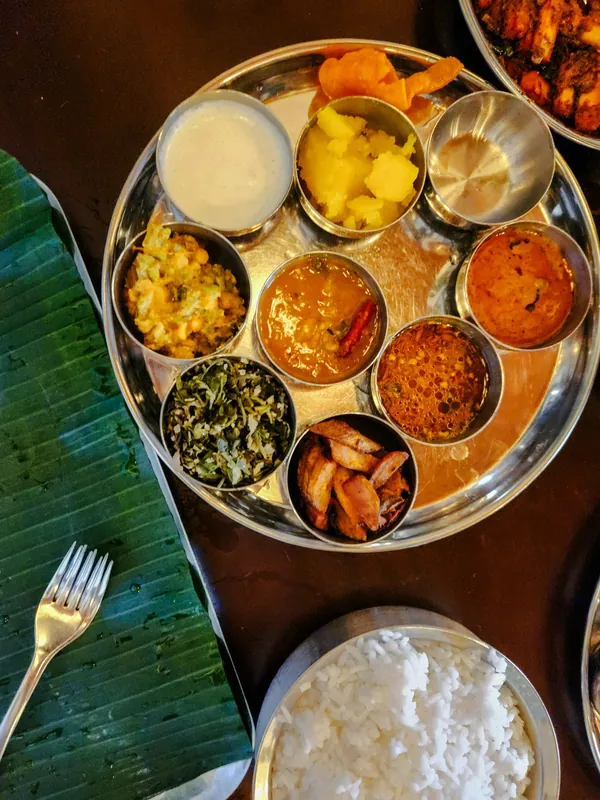
thali.jpgExport
OriginalEnhanced
1080 × 1440 · JPG

AI tools

AI Image Enhancer

Working… 1 credit

  • Background Remover
  • Replace Background
  • Magic Eraser
  • Generative Fill
  • AI Image Restore
to fix light and colour
1 click
Enhance and Restore
2 tools
AI photo tool uses a month
4 free
per run
1 credit
How it works

How to use the ai photo enhancer
in 3 steps.

  1. 01

    Upload the photo

    Add the picture you want to improve to any Pixel Studio design.

  2. 02

    Enhance or restore

    Open AI Tools and choose AI Image Enhancer for light and colour, or AI Image Restore for noise, scratches and old-photo damage.

  3. 03

    Compare and use it

    The improved version is added next to the original, so you can compare, keep the better one and keep designing.

What it does

Everything the ai photo enhancer does, in one tab.

Fix dark and dull photos automatically

The enhancer balances exposure, lifts shadows and brings back colour, the edits you'd make by hand with five sliders.

Sharper detail and clarity

Edges and textures get crisper, so faces, food and products look clear on small phone screens.

Restore old and damaged photos

AI Image Restore removes noise, compression blocks and artefacts and sharpens detail — good for scanned family prints and old phone photos.

Better product and food photos

Brighter, truer-colour shots for menus, Swiggy and Zomato listings, Instagram shops and marketplace images.

Combine with the upscaler

Enhance first, then run Super Resolution 4K to make the image larger for print or a full-screen post.

Original kept, nothing lost

Each result is a new version on the canvas. Your original stays as it was, and every step can be undone.

Made for

Who uses the ai photo enhancer, and for what.

  • 01

    Restaurants and cafés

    Menu and delivery-app photos that look as good as the food.

  • 02

    Old family photos

    Scanned prints and early phone photos cleaned up for albums, frames and anniversary posts.

  • 03

    Online sellers

    Product shots taken in poor light fixed before they go on Meesho, Amazon or your website.

  • 04

    Creators

    Selfies, event photos and thumbnail frames brightened and sharpened before posting.

// Guide

  1. Light and colour: AI Image Enhancer
  2. Noise, blur and old-photo damage: AI Image Restore
  3. Size: Super Resolution 4K
  4. Tips for better results
  5. Enhance before you design
  6. What the Free plan includes

How to enhance photo quality the right way

"Enhance" can mean several fixes. Knowing which one a photo needs gets you a better result than running everything at once.

Light and colour: AI Image Enhancer

Most disappointing photos are simply too dark, too grey or too warm. AI Image Enhancer looks at the whole picture and corrects exposure, contrast, colour balance and clarity together. It's the one-click fix for indoor photos, cloudy-day shots and food under yellow light.

Noise, blur and old-photo damage: AI Image Restore

Grain from a dark room, blocky compression from WhatsApp forwards and faded scans need a different fix. AI Image Restore removes noise and artefacts and sharpens detail. Use it on old prints you have scanned or photographed, and on images that have been forwarded many times.

Size: Super Resolution 4K

If the photo is clean but small, enhancing won't make it bigger. Use the image upscaler to enlarge it up to 4×. A good order for a rough old photo is restore → enhance → upscale.

Tips for better results

  • Start from the original file, not a screenshot or a forwarded copy — every copy loses detail.
  • Photograph old prints flat, in daylight, without glare from the glass or the glossy surface.
  • Crop first so the AI works on what matters.
  • Compare before you commit — the original stays on the canvas, so keep whichever looks more natural.

Enhance before you design

Run the enhancer on every photo before it goes into a post, so a carousel or a catalogue looks consistent. A dull photo next to a bright one makes the whole design look uneven. Once the photos match, use the background remover to put products on the same backdrop, add your text and logo, and export at the size each platform expects. Because everything happens on one canvas, you never download and re-upload between tools — the enhanced photo is already in your design.

What the Free plan includes

The Free plan includes 4 AI photo tool uses a month, and each run costs 1 credit. Paid plans remove the cap and export without a watermark at up to 4K. See pricing.


Pricing

What's free, what's paid.

The ai photo enhancer is part of Pixel Studio. Every account starts on the Free plan; upgrade only when you need more.

Free plan · ₹0

  • 4 AI photo tool uses a month
  • 50 credits a month
  • 10 saved designs
  • Exports up to 720p, with a small watermark

Paid plans

  • Starter plan and up, from ₹499 a month
  • AI photo tools with no monthly cap, paid from your credits
  • Watermark-free exports up to 4K and transparent PNG
  • Magic AI designs and unlimited saved designs
Compare plans

// FAQ

AI Photo Enhancer questions.

Something else? Ask us — a person replies.

You can use it on the Free plan, which includes 4 AI photo tool uses a month. Each run costs 1 credit; paid plans from ₹499 a month remove the monthly cap.

Upload the photo to Pixel Studio, select it, open AI Tools and choose AI Image Enhancer. The improved version appears next to the original.

It sharpens soft detail and AI Image Restore removes noise and artefacts, which helps most slightly blurry photos. A badly out-of-focus photo can improve but won't become perfectly sharp.

Yes. Photograph or scan the print, then run AI Image Restore to remove noise and damage and sharpen detail. Upscale it afterwards if you want to print it larger.

Enhancing improves light, colour and clarity at the same size. Upscaling makes the image larger. Use both for small, dull photos.

No. The enhanced result is added as a new version, and the original stays on your canvas.

Yes — it's ideal for photos taken under yellow indoor light or on cloudy days, which come out dull and too warm.

Paid plans export without a watermark at up to 4K. The Free plan exports up to 720p with a small watermark.

// Keep going

More features you'll use with it

All features
ai photo tool

Image Upscaler

Make small images up to 4× bigger with AI that adds detail, not blur. Then design and export in one tab.

Pixel StudioOpen
ai photo tool

Background Remover

Remove the background from any photo in one click, then put the cutout on a new background or design.

Pixel StudioOpen
ai photo tool

Remove Object from Photo

Paint over people, text or clutter in a photo and Magic Eraser removes it and fills the gap.

Pixel StudioOpen
ai generation

AI Image Generator

Describe an image and generate it with top models like Nano Banana Pro and GPT Image. Cost shown first.

Vision StudioOpen
ai photo tool

Change Background of Photo

Keep the subject, swap the scene: describe a new background, or drop the photo on a colour or template.

Pixel StudioOpen
ai photo tool

AI Image Extender

Extend a photo past its edges with matching content, to fit any shape or make room for text.

Pixel StudioOpen

// Keep going

Make something with Pixel Studio

Everything you can make
design maker

YouTube Thumbnail Maker

Thumbnails at 1280 × 720 with real templates, background removal and bold titles that read on a phone.

Pixel StudioOpen
design maker

Flyer Maker

A4 flyers for businesses, offers and events, from real templates, printed as PDF or shared as an image.

Pixel StudioOpen
design maker

Birthday Card Maker

Birthday wishes cards with their photo and your message, to send on WhatsApp or print.

Pixel StudioOpen

// Learn more

Guides and tips

Read the Pixel Studio docs
A split screen comparing a blurry, pixelated phone video with the same video looking sharp after the right export settings

Video·30 Oct 2026

Why Your Video Looks Blurry After Uploading (and the Export Settings That Fix It)

Black wireless headphones photographed on a bright yellow background

Small business·7 Oct 2026

AI Product Photos for Small Sellers: What Works, What Looks Fake, and What Marketplaces Allow

A designer's desk seen from above with sketches, coloured markers and a phone

Design·7 Oct 2026

Why Nobody Can Read Your Post: Text Contrast and Legibility for Social Media Designs

AI Photo Enhancer, right now.

Fix dark, dull or soft photos in one click, and restore old pictures, with AI.

EditingKaro

Design, video, AI generation and writing. Four studios in one browser tab.

Product

  • Pixel Studio
  • Motion Studio
  • Vision Studio
  • Content Studio
  • Features
  • Create
  • Free tools
  • Pricing

Company

  • About us
  • Contact us
  • Send feedback
  • Blog
  • Docs
  • FAQ
  • All policies

Legal

  • Privacy Policy
  • Terms of Service
  • Cookie Policy
  • Acceptable Use
  • AI Usage Policy
  • Copyright / DMCA

Billing

  • Refund & Cancellation
  • Subscription & Billing
  • Credits Policy
  • Service Delivery

© 2026 Editing Karo. All rights reserved.

Made withlovein India

326 Patparganj Industrial Area, Delhi - 110092, India