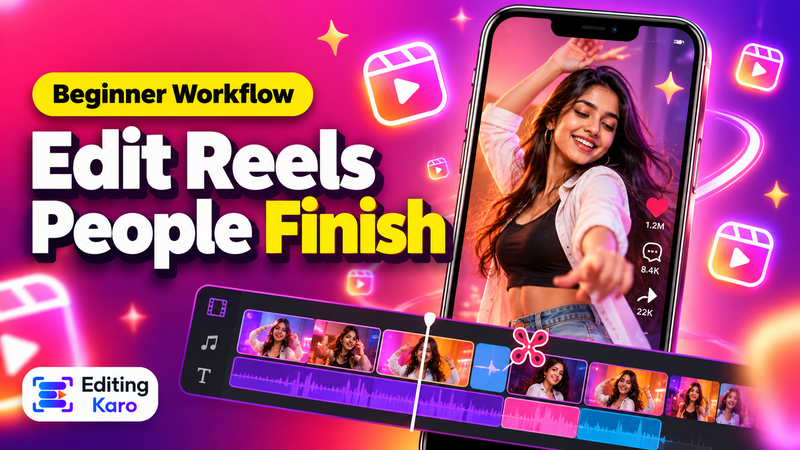
How to trim and cut a video online
Trimming is the edit almost every video needs: cutting the slow start, the mistakes and the long ending so the best part plays first.
Trim vs split vs cut
- Trim shortens a clip from its start or end: drag either edge of the clip on the timeline.
- Split cuts one clip into two at the playhead: press S. Then delete the piece you don't want, or move it.
- Cut out the middle: split at the start and the end of the bad part, then delete the piece between.
Get the timing exactly right
Motion Studio works at 30 frames a second, and splits snap to whole frames. To find the exact spot, select a clip and nudge with the arrow keys — one frame at a time, or ten with Shift. Press Space to play and check the cut.
Trim for each platform
- Reels and Shorts: a vertical 9:16 project, the hook in the first two seconds.
- YouTube: a 16:9 project; trim pauses and repeated takes so the pace stays up.
- WhatsApp status: keep the video short so it plays in one go.
Make it better than a plain cut
After trimming, add captions — most short videos are watched without sound — plus a title for the hook and music on its own track. Use a transition between two clips if a jump cut feels abrupt.
Common trimming mistakes
- Cutting mid-word: play a second either side of the cut and listen. Move the split a few frames if a word is clipped.
- A slow first second: on Reels and Shorts, viewers decide in the opening moments, so trim straight to the action.
- Music that stops abruptly: trim the music clip to end with the video and fade it out.
- Wrong shape: trimming doesn't change the frame. Start a 9:16 project for vertical platforms rather than exporting a landscape video.
Export
Press Export, choose video (MP4) or audio only (MP3 or M4A), and the quality. The Free plan exports up to 720p with a small watermark and includes 20 export minutes a month. Paid plans export without a watermark at up to 1080p, and up to 4K on the top plans. See pricing.