How to Add Captions to Short Videos: Styles, Timing and the Mistakes That Make People Scroll
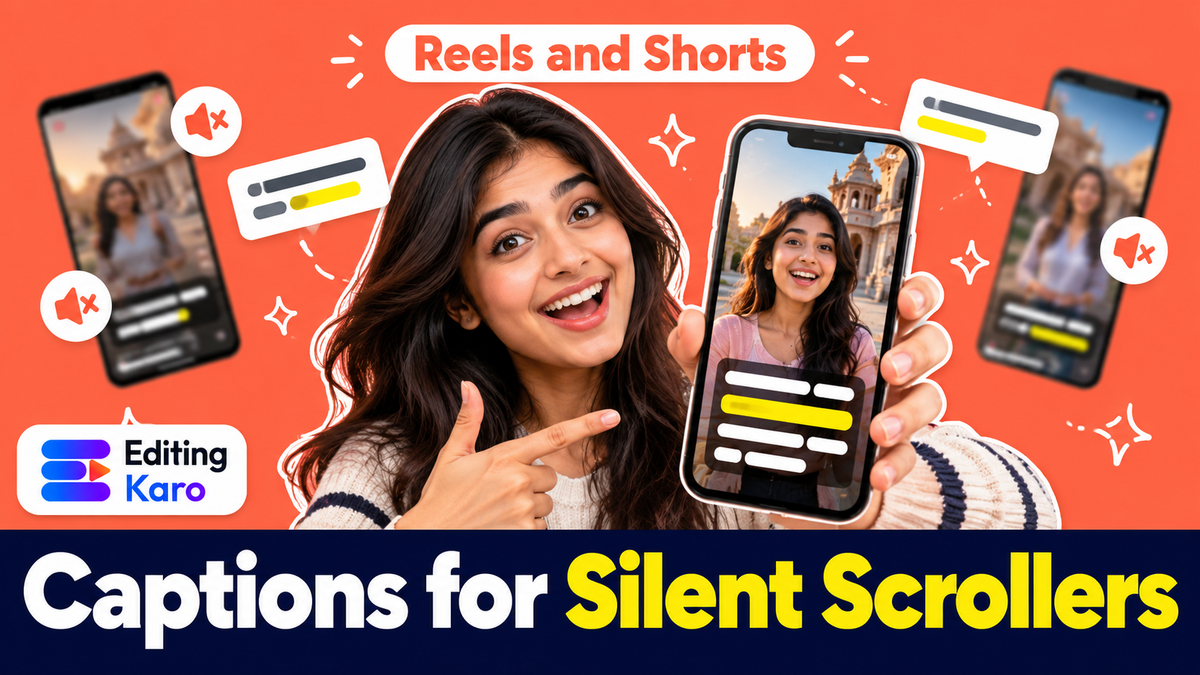
Watch people scrolling on a metro, in a waiting room, or in bed next to someone sleeping. Most of them aren't listening. They're reading.
That's the simple reason captions matter. If your Reel depends on what you're saying, and the first two seconds are silent to the viewer, you've lost them before your hook has had a chance.
This guide covers what actually makes captions work: the length, the placement, the style, and the checking that most people skip.
How many people watch with the sound off?
The most cited research is a 2019 survey by Verizon Media and Publicis Media of 5,616 US adults. It found 69% of people watch video with the sound off in public places and about 25% do so in private, and that 80% of people who use captions don't have a hearing impairment (3Play Media summary).
The study is a few years old and was done in the US, so treat the exact numbers loosely. But the habit it describes hasn't gone away: short video is watched in public, in offices and late at night, and a lot of it is watched silently.
There's also the simple matter of access. For people who are deaf or hard of hearing, a video without captions is a video they can't use.
Burned-in captions vs platform captions
There are two kinds:
| Burned-in (open) captions | Platform (closed) captions | |
|---|---|---|
| What it is | Text drawn into the video itself | A text track the app shows or hides |
| Viewer can turn off | No | Yes |
| Your styling | Fully yours | The app's style |
| Best for | Reels, Shorts, ads, Stories | Long YouTube videos, translations |
For short vertical video, burned-in captions are the norm because they're guaranteed to show and they're part of the look. For longer YouTube videos, uploading a caption file (or correcting YouTube's automatic captions) is worth it as well, since viewers can switch language and size.
Rule 1: Short lines, not paragraphs
The biggest caption mistake is dumping a full sentence on screen. The viewer's eye has about a second before the picture changes.
- 3 to 7 words per caption for punchy short video
- One line where possible, two at most
- Break at natural pauses, not mid-phrase. "Your cake sinks / because the oven" reads worse than "Your cake sinks / for one simple reason"
A good test: read the caption out loud at normal speed. If you run out of breath, it's two captions.
Rule 2: Place them where nothing covers them
On a vertical 1080 × 1920 video, the bottom of the screen is crowded. Instagram and YouTube put the caption text, username, music label and buttons there. The right edge has the like, comment and share buttons.
Put captions in the middle third of the frame, a little below centre, and keep them clear of the right side. It also keeps them near the face, so the viewer's eye doesn't jump between what you're doing and what you're saying.
If you add a title or hook text at the top, keep the captions low enough that the two never stack on top of each other.
Rule 3: Make them readable over anything
Your footage changes: a white wall, a bright window, a dark room. Captions have to survive all of it.
- Heavy weight. Bold or black sans-serif fonts. Thin fonts vanish on phones.
- An outline, shadow or box. White text with a dark outline, or text on a semi-transparent block, reads over almost any background.
- Big enough. On a 1080-wide frame, text much under 50 to 60 pixels tall is hard to read on a small phone.
- High contrast. Our text contrast guide and free colour contrast checker help you check colour choices.
Avoid the temptation to use a different colour for every word. Highlight one key word per caption, if any. When everything is highlighted, nothing is.
Rule 4: Time them to the speech
Captions that appear early give away the punchline. Captions that lag feel broken.
- Start each caption with the first word of the phrase, not before.
- Let it stay until the phrase ends, plus a beat if the next line doesn't follow immediately.
- Don't leave a caption on screen during a long silence. It looks like a mistake.
If you're cutting fast, re-check caption timing after every trim. A two-second cut earlier in the video shifts everything after it.
Rule 5: Check every word
Automatic captions are a huge time saver, and they're often wrong in exactly the places that matter most:
- Names of people, products and places
- Numbers and prices ("fifteen" vs "fifty", ₹ vs "rupees")
- Brand terms and jargon
- Hinglish and mixed languages, where speech recognition switches scripts or invents words
One wrong word in a price or a name can cost more than having no captions at all. Read the whole thing once with the sound off, as your viewers will.
Caption styles that work
| Style | What it looks like | Good for |
|---|---|---|
| Classic subtitle | White, outlined, bottom-middle, one or two lines | Talking heads, interviews, tutorials |
| Word-by-word pop | One to three words at a time, centred, big | Fast-paced Reels and Shorts |
| Highlight sweep | Full line shown, each word fills with colour as it's spoken | Storytelling, voiceovers, karaoke-style |
| Boxed | Text on a coloured or semi-transparent bar | Busy footage, brand videos, ads |
Pick one style per video and stay with it. Switching styles mid-video looks unplanned.
Adding captions in Editing Karo
Motion Studio, Editing Karo's video editor, gives you two ways to caption a video, depending on how much time you have.
From a script, with full control
- 1Open Captions in the editor.
- 2Paste your script, with a blank line between each caption. Everything between blank lines becomes one caption, so you decide exactly where the lines break.
- 3Set how long each caption stays on screen, then nudge individual captions on the timeline to match the speech.
- 4Optionally turn on the read-along effect: a colour fill that sweeps across the words as they're spoken, or a typewriter reveal.
This works on every plan, Free included.
Automatically, with Motion AI
On paid plans, Motion AI can make the first cut for you. Give it your raw clips and ask for something like a fast Reel with only the best moments and bold captions. It listens to what's said, cuts the pauses and mistakes, and builds an edit you keep working on. It's the quickest route, and the "check every word" rule above still applies.
Keep every video on-brand
Style one caption the way you like (font, size, outline, highlight colour) and save it as a text style in your brand kit. One click applies the same look to captions in every future video, so viewers recognise your Reels before they read your name.
Captions are ordinary text clips, so you can still change anything by hand. Our captions docs cover the details.
If you write your voiceover script first, you already have your captions. Content Studio can draft a Reel or Shorts script in your tone and language, and the AI voiceover guide shows how to make it read naturally. The same line breaks work for captions.
Captions on ads
If you run Reels or Stories ads, captions matter even more: ad viewers didn't choose your video, so the sound is even more likely to be off. Put the offer in words on screen in the first two seconds, not only in the voiceover. The ad creatives guide goes deeper.
A five-minute caption checklist
- One or two lines, 3 to 7 words each
- Middle third of the frame, clear of buttons
- Heavy font with an outline or box
- One highlighted word at most
- Timing matches the speech
- Every name, number and price checked
- Watched once on mute, start to finish
Do that and your video works for the person in the metro, the person in the office, and the person who can't hear it at all. That's most of your audience.
Caption your next Reel the quick way: paste the script into the Captions panel in Motion Studio and you'll have a fully captioned video in a few minutes, free.
Frequently asked questions
What's the difference between captions and subtitles?
In everyday use they mean the same thing: text of what's being said, shown on the video. Strictly, subtitles translate speech for people who don't speak the language, while captions also help people who can't hear the audio and may include sounds like [music] or [laughs].
Should I use the platform's auto-captions or burn captions into the video?
Burned-in (open) captions look the same everywhere and match your style, which is why most creators use them for Reels and Shorts. Platform captions can be switched off by the viewer and are useful for long YouTube videos, where you can upload a caption file. Many creators do both.
How long should a caption stay on screen?
Long enough to read twice comfortably. For short punchy lines that's around one to two seconds; for a full two-line caption, two to three seconds. If viewers would need to pause to read it, it's too long.
Do captions help Reels and Shorts reach more people?
No platform has said captions are a ranking factor on their own. What captions do is help people understand and stay with your video when the sound is off, and watching longer is something every short-video platform rewards.
Can I add Hindi or Hinglish captions?
Yes. Write them the way your audience reads: Devanagari for a Hindi-reading audience, Roman script for Hinglish. Whichever you choose, keep it consistent within one video, and check auto-generated text carefully because speech recognition often struggles with mixed languages.