You spend three days researching, recording, and editing a video. You upload it to YouTube, pick a video frame or run a quick prompt through an image generator, and hit publish. Two days later, your analytics show a 1.8 percent click-through rate.
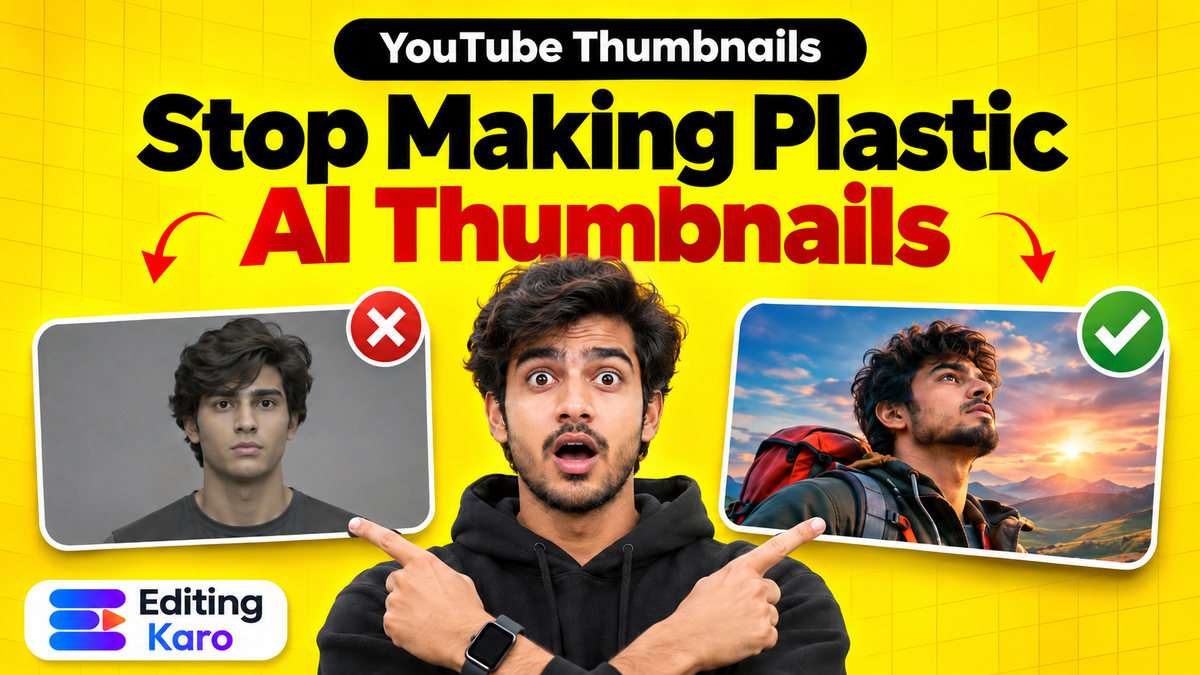
Viewers do not click because the graphic looks like generic AI plastic: waxy skin, melted eyes, strange floating text, and zero focal point.
Using an ai thumbnail generator for youtube is one of the smartest ways to speed up your production workflow, but only if you treat AI as an art department rather than a finished thumbnail designer. Rather than expecting a single prompt to produce a flawless composite, the most effective creators generate modular assets and compose them in an editor.
Here is the exact framework to create high-converting YouTube thumbnails with AI, from prompt formulas to final typography.
Why raw AI thumbnails fail to get clicks
Most creators type a prompt like "dramatic YouTube thumbnail for tech review" into an AI tool and download the first square image. That workflow fails for three clear reasons:
- 1Uncanny valley skin tones: Image models often apply heavy surface smoothing, giving human subjects plastic skin that viewers instinctively scroll past.
- 2Unreadable or broken typography: Even state-of-the-art models struggle with letterforms. Text generated inside an image usually contains distorted letters, uneven kerning, or nonsensical words.
- 3No visual hierarchy: A good thumbnail directs the human eye in three seconds: first to the expression, then to the visual hook, then to the two-word headline. Raw AI generations usually scatter visual details everywhere.
To build thumbnails that earn clicks, separate your workflow into two stages: generate the visual assets with AI, and assemble the composite graphic in a dedicated editor. Official YouTube thumbnail guidelines recommend clean 1280 × 720 images with strong focal points, and modular editing ensures you meet those standards every time.
The prompt formula for realistic thumbnail subjects
When you write prompts for an ai thumbnail generator for youtube, strip out generic filler words. Avoid phrases like "hyperrealistic", "8K resolution", or "masterpiece". Generative models respond far better to specific photography, lighting, and camera terms.
Use this modular prompt formula:
[Subject + Emotional Expression] + [Wardrobe / Props] + [Lighting Style] + [Background Environment] + [Camera Lens and Framing] + [Aspect Ratio 16:9]
Take an illustrative example: imagine you run a personal finance channel in Bangalore and need a thumbnail for a video explaining emergency funds.
Instead of prompting:
Make an exciting YouTube thumbnail about saving money Indian creator 8k
Prompt with precise visual parameters:
Close-up portrait of a 28-year-old Indian man looking at a smartphone screen with wide eyes and an anxious expression, holding a blue passbook, dramatic rim lighting from the side, dark navy office background with soft bokeh, shot on 50mm lens at f/1.8, natural skin texture, visible pores, 16:9 landscape aspect ratio.
Notice the difference. You told the model the exact lens type, the emotion, the lighting direction, and the aspect ratio. The result gives you a sharp, human subject without distorted skin.
| Parameter | What to avoid | What to write instead |
|---|---|---|
| Lighting | "Beautiful lighting" | "Side rim light, volumetric soft studio box, dark backdrop" |
| Subject Texture | "Smooth 8k face" | "Natural skin texture, realistic pore detail, matte skin" |
| Framing | "YouTube thumbnail view" | "Cinematic close-up portrait, 35mm lens, shallow depth of field" |
| Composition | "Lots of cool money things" | "Single subject on left third, clean negative space on right third" |
| Aspect Ratio | Default 1:1 square | "--ar 16:9 or horizontal landscape framing" |
Step 1: Generate your background and subject separately
The biggest mistake creators make is trying to generate the entire thumbnail in a single prompt. When you ask a generator to create a person, a computer desk, floating charts, and text all at once, the neural network struggles to balance each element.
Generate the background scene
Start by generating your environment. If you are reviewing a smartphone, generate a clean studio table with neon accent lighting and soft shadows. If you are discussing travel, generate a misty mountain road at dawn. Keep the centre or one side relatively empty so you have room for your subject and headline.
Generate or shoot the subject
Next, generate your subject on a plain backdrop, or better yet, snap a high-resolution selfie on your phone with good window light. Having a real human face creates a genuine connection with viewers that purely synthetic characters cannot replicate.
If you generate an AI character, use modern image models like GPT Image 2.5 or Nano Banana Pro available in Vision Studio, which excel at rendering human anatomy and realistic lighting.
Step 2: Clean up flaws and remove the background
Once you have your subject, inspect the image at 100 percent zoom. Look for common AI generation artefacts:
- Extra fingers or distorted fingernails
- Asymmetrical pupils or odd reflections in glasses
- Hair that blends into the background wallpaper
- Overly glossy cheeks and forehead
Use a clean cut-out tool to isolate your subject. In our YouTube thumbnail design guide, we explain why edge precision matters: if your cutout has rough white halos around the hair, your graphic instantly looks amateurish.
Once isolated, apply a subtle drop shadow or an outer stroke (white or vibrant cyan) around your subject to separate them from the background plate. This visual separation draws the eye directly to the focal subject when viewed on tiny smartphone screens.
Step 3: Layer bold typography in a layout canvas
Now bring your clean background and isolated subject into a design canvas. This is where you transform an AI image into a functional YouTube thumbnail.
Follow these rules for your thumbnail copy:
- 1Limit yourself to two to four words: Never repeat your video title verbatim. If your video title is "How to Invest in Index Funds for Beginners", your thumbnail text should simply read "Start Here" or "Avoid This".
- 2Choose heavy sans-serif typefaces: Fonts like Unbounded, Anton, Montserrat ExtraBold, and Bebas Neue remain legible even when shrunk down to a tiny 120-pixel mobile notification. Review our font pairing guide to balance headline weight.
- 3Ensure contrast against both backgrounds: Use our free color contrast checker to verify that your text pops. White letters with a black outline or dark backing box work reliably on almost any background.
- 4Respect the timestamp safe zone: YouTube overlays a dark grey duration badge in the bottom-right corner of every thumbnail. Keep all text, faces, and logos out of the bottom-right quadrant.
You can also examine how YouTube explains its Thumbnail Test and Compare feature: testing two or three distinct visual hooks often reveals that simpler text with stronger face contrast outperforms complex illustrations.
Doing it in Editing Karo
Creating clickable YouTube thumbnails does not require switching back and forth between four disconnected software subscriptions. Editing Karo brings generative AI models and canvas design together in one browser workspace.
Here is how the workflow maps across the platform:
| Task | Studio or tool | How to do it |
|---|---|---|
| Generate custom backgrounds | Vision Studio Image | Pick GPT Image 2.5 or Nano Banana Pro, set 16:9, and prompt for atmospheric backdrops |
| Cut out your subject portrait | Pixel Studio | Use the one-click Background Remover to isolate yourself or an AI character cleanly |
| Enhance resolution & facial details | AI Photo Tools | Run Super Resolution 4K and Face Restore to sharpen eyes and remove noise |
| Layout, text badges & safe zones | Pixel Studio Canvas | Choose the 1280 × 720 YouTube preset, add bold headings, and check mobile margins |
| Compress for YouTube upload | Image Compressor | Ensure the exported file stays well below the 2 MB upload threshold without losing sharpness |
Free accounts can test all four studios and export standard designs. When you need watermark-free exports and advanced AI photo tools like Super Resolution 4K, upgrading to a Starter or Pro plan unlocks full production power.
A pre-publish thumbnail checklist
Before uploading your new thumbnail to YouTube Studio, run through this five-point verification list:
- [ ] Mobile thumbnail test: Zoom out to 15 percent on your screen. Can you still read the two-word headline clearly?
- [ ] Timestamp clearance: Is the bottom-right corner free of critical text and faces?
- [ ] Emotional clarity: Does the subject's facial expression match the tone of the video?
- [ ] Skin realism: Did you inspect the face to make sure it doesn't look like an airbrushed plastic doll?
- [ ] File constraints: Is the file exported as a 1280 × 720 JPG or PNG under 2 MB?
Take a look at your recent uploads to see which videos suffer from low click-through rates. Open Pixel Studio, select the YouTube thumbnail canvas, and pair a striking AI background with bold, readable text.
Frequently asked questions
What is an AI thumbnail generator for YouTube?
An AI thumbnail generator creates background scenes, realistic character portraits, or full visual concepts from text prompts. Most creators use AI to generate base imagery, then add titles, graphics, and branding in a dedicated photo editor.
Can AI generate text on YouTube thumbnails properly?
Modern AI models can produce short words, but they frequently misspell phrases or distort letter spacing. For clean, clickable thumbnails, generate the imagery with AI and add your headline text in a layout editor with bold fonts.
What is the correct YouTube thumbnail size and format?
YouTube thumbnails must be 1280 × 720 pixels with a minimum width of 640 pixels, using a 16:9 aspect ratio. The file size must remain under 2 MB in JPG, PNG, or WEBP format.
Why do AI thumbnails often look fake?
AI models often smooth skin tones excessively, creating a plastic sheen, or add unnatural reflections and extra fingers. Specifying camera lenses, natural pore textures, and directional lighting in your prompt fixes most of this plastic appearance.
Does YouTube allow AI-generated thumbnails?
Yes, YouTube permits AI-generated imagery in thumbnails as long as they comply with community guidelines and do not deceive viewers about the video topic. YouTube requires disclosures for realistic synthetic video content, but thumbnail art is standard practice.
What prompt keywords create realistic thumbnail portraits?
Use photographic terms like 35mm portrait lens, rim lighting, subsurface scattering, visible skin pores, and shallow depth of field. Avoid spamming terms like 8K, trending on ArtStation, or masterpiece, which trigger heavy stylisation.
Should I show my real face or an AI face on thumbnails?
If you run a personal brand channel, your real face builds long-term subscriber trust. You can photograph yourself on a phone, remove the background, and drop yourself onto a striking AI-generated background scene.
How many words should be on a YouTube thumbnail?
Keep thumbnail text between two and four words. The thumbnail and the video title should complement each other, with the thumbnail delivering an emotional hook and the title providing context.
What colours make YouTube thumbnails stand out on mobile screens?
High-contrast combinations like yellow on black, white on deep navy, and neon green on charcoal stand out against YouTube's dark and light app themes. Avoid washed-out pastels that blend into grey borders.
Can I use AI thumbnails for faceless YouTube channels?
Yes, faceless channels covering finance, tech reviews, crime documentaries, and history rely heavily on AI scene generators to visualise historical events, dramatic concepts, and metaphorical storytelling.
What is the safe zone for YouTube thumbnails?
Keep critical text, faces, and logo badges away from the bottom-right corner, where the video timestamp badge sits on mobile and desktop apps. Also keep margins clear so edge crops do not cut off words.
How can I fix weird hands or eyes in an AI generation?
Use an inpainting or object remover tool to erase the flawed section and re-render it, or crop the shot into a tighter portrait where distorted fingers remain out of frame.
Is a free AI thumbnail maker enough for growing channels?
Free generators help you get started, but paid plans give you higher image resolutions, faster generation queues, commercial rights, and integrated design tools to layer text without watermarks.
What aspect ratio should I prompt for YouTube thumbnails?
Always set your generator aspect ratio to 16:9 or horizontal landscape. Generating a square image and stretching it to fit 16:9 distorts faces and degrades sharpness.
AI thumbnail kaise banaye mobile se?
Open a web browser on your phone, generate your background concept in an AI studio, download the image, and open an editor to crop to 1280 × 720, remove portrait backgrounds, and add bold text.
How does thumbnail contrast affect click-through rate?
Mobile users scroll past dozens of videos every second. High tonal contrast between the foreground subject and the background makes the thumbnail readable at small sizes on smartphone feeds.
Can I test two different AI thumbnails on YouTube?
Yes, YouTube features a native Thumbnail Test and Compare tool in YouTube Studio that allows creators to test up to three thumbnail variants against each other to see which earns higher watch time.
How do I make my AI thumbnail characters look consistent across videos?
Keep character descriptions identical across prompts, specifying age, hairstyle, clothing colours, and lighting conditions, or use reference image inputs if your generator supports character seeds.
How do I create AI thumbnails in Editing Karo?
Generate custom backgrounds or subjects using Vision Studio image models like GPT Image 2.5, then open Pixel Studio to remove backdrops, drop in your cutouts, apply strokes, and add bold headings.
Do I need a paid plan to export thumbnails in Editing Karo?
Free accounts can access all studios and export thumbnails at standard resolutions. Upgrading to Starter or Pro removes the watermark and unlocks advanced AI photo tools like Super Resolution 4K.