Every video creator knows the frustration of missing B-roll. You are editing a YouTube documentary or an Instagram Reel, and you need a three-second shot: a steam engine chugging through morning fog, an artisan pouring hot tea in Old Delhi, or rain rippling across neon pavement.
Hiring a camera crew or buying expensive stock clips is often out of reach.
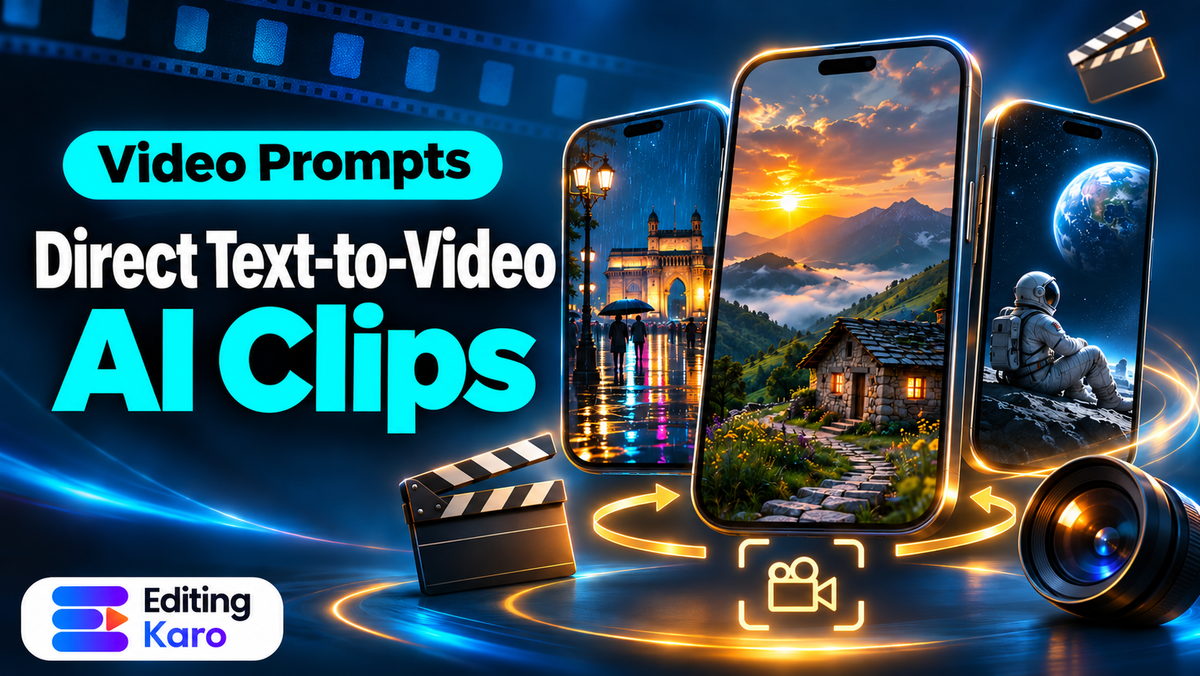
A modern text to video ai generator gives you a virtual film crew inside your browser. Instead of scouring stock libraries for footage that never quite matches your vision, you can prompt exact camera angles, lighting conditions, and character motions.
However, writing prompts for video is fundamentally different from prompting still images. A still image requires spatial composition, while a video requires temporal direction: where the camera starts, how fast it travels, and what happens to the subject over four seconds.
Here is how to direct generative video models effectively, produce smooth B-roll, and assemble high-retention video stories.
The prompt structure: directing like a cinematographer
When you tell an AI model to "make a video of a busy street", the model must guess dozens of variables: camera height, speed, focal length, time of day, and weather. The result is usually an unpredictable mess of warping cars and floating pedestrians.
To get predictable results, write prompts that follow standard cinematic shot lists. Use this five-part formula:
[Camera Motion & Lens Type] + [Subject Action] + [Environment & Weather] + [Lighting & Color Grade] + [Style & Mood]
Take a concrete example: imagine a travel creator in Kochi producing a vertical video about heritage spice markets.
If they prompt:
Indian spice market video cinematic 4k
The AI model generates erratic panning, melting spice bags, and chaotic pedestrians.
Instead, structure the prompt with deliberate camera direction:
Slow forward dolly shot on a 35mm cinema lens, moving between burlap sacks overflowing with bright turmeric and dried red chillies, warm morning sunlight streaming through rustic wooden roof slats, gentle dust particles drifting in light beams, shallow depth of field, natural documentary color grade, steady cinematic motion.
Notice how every word constrains the camera. The model knows to travel forward in a straight line, focus on the spices, and let dust drift gently through golden light.
| Cinematic Parameter | Weak prompt input | Strong prompt input |
|---|---|---|
| Camera Movement | "Exciting camera" | "Slow push-in dolly shot, eye level, stable gimbal" |
| Movement Speed | "Fast action" | "Smooth slow-motion drift, 60fps feel" |
| Focal Length | "Wide view" | "24mm wide-angle lens with subtle perspective depth" |
| Lighting Style | "Good sunny day" | "Late afternoon golden hour backlight with warm lens flares" |
| Color Treatment | "Vibrant" | "Kodak Portra film stock tones, muted greens, warm highlights" |
Camera moves that AI video models understand
Generative video models are trained on millions of cinematic film clips. They understand professional camera terminology far better than casual adjectives.
1. The Push-In / Dolly Shot
The camera moves smoothly forward toward a subject. This is ideal for revealing details, building dramatic tension, or drawing the viewer into a setting. Use phrases like "slow forward dolly shot" or "gentle push-in on subject".
2. The Tracking Shot
The camera moves parallel to a moving subject, matching their speed. This works well for lifestyle B-roll, such as a runner on a trail or a craftsman working in a workshop. Prompt for "smooth lateral tracking shot matching walking pace".
3. The Drone / Aerial Crane
The camera starts high and tilts downward, or drifts over a landscape. Use this for establishing shots of cities, coastlines, or mountain roads. Prompt for "high-altitude drone shot slowly descending over mist-covered hills".
4. The Orbit / Arc Shot
The camera circles smoothly around a stationary subject. This creates a high-end commercial look for product showcases or emotional portrait moments. Prompt for "360-degree smooth arc shot around the centre subject".
Researchers studying generative video diffusion models, including technical insights published by Google DeepMind on video generation, highlight that models perform best when camera trajectories remain physically plausible rather than attempting impossible geometric twists.
When preparing AI footage for delivery, following the official YouTube video encoding specifications ensures your generated frame rates and color profiles convert cleanly without introducing compression banding.
Understanding prompt weight and negative guidance
When directing a generative video model, small changes in sentence structure shift the virtual director's priorities. Placing your primary camera action at the start of your prompt gives the model clear instructions before it begins calculating pixel motion.
If your clips suffer from unwanted elements like random visual glitches or jittery background objects, describe what you want to see rather than what you want to avoid. Generative diffusion models are conditioned on visual presence; typing "no blurry people" often causes the neural network to render blurred crowds because it identifies the concept of people in the prompt tokens.
Instead, frame your scene positively:
- Rather than "no messy background", write "clean minimalist studio backdrop with soft gradients"
- Rather than "no fast shaking", write "gentle tripod lock shot with steady horizon line"
- Rather than "no dark shadows", write "balanced high-key three-point commercial studio lighting"
This positive framing keeps the model focused on rendering clean geometric shapes and coherent physical motion.
Managing motion artefacts and the three-second rule
Even the best video models have limitations. If you ask an AI model to generate a 30-second scene of two people having a conversation while walking downstairs, the video will degrade into warped anatomy.
Follow these practical guidelines to keep your footage clean:
- 1Stick to short three to six second bursts: Professional video editors rarely hold an unedited B-roll cut for more than four seconds. Generating short, modular clips gives you higher fidelity and greater editing flexibility.
- 2Limit secondary subject actions: Direct either the camera to move or the subject to move, but avoid commanding both simultaneously at high speeds. If your camera is flying backward while your subject is doing gymnastics, the visual coherence will collapse.
- 3Use static camera prompts for micro-actions: If you want to show coffee beans dropping into a grinder or water boiling in a glass kettle, lock the virtual camera down with "fixed tripod shot, close-up macro lens".
When you compare text-to-video against image-driven workflows in our image-to-video AI guide, text generation gives you greater freedom to invent new locations from scratch, whereas image animation gives you strict control over initial character appearance.
Assembling AI clips on a timeline
Generating individual clips is only half the battle. Raw AI video clips have no sound, no pacing, and no narrative flow. To turn them into content people want to watch on Instagram Reels or YouTube Shorts, bring them into an editing timeline.
Step 1: Trim the unstable ends
AI video models often take half a second to settle into their motion path, and they occasionally stutter right before the clip ends. Trim the first and last ten frames of every generation to retain only the smoothest movement.
Step 2: Establish audio atmosphere
A silent video feels artificial. Add ambient sound effects that match your scene: market chatter, wind rustling leaves, or city traffic. Adding natural room tone instantly grounds the synthetic visual in reality. Review our guide on copyright-safe music to pair appropriate tracks without risk of demonetisation.
Step 3: Color grade for visual consistency
If you generate three clips from different prompts, their colour temperatures may vary slightly. Apply a subtle unified LUT or adjust color temperature and contrast so the sequence looks like it was shot on the same camera sensor.
Review our technical breakdown on export settings that fix blurry video to ensure your rendered timeline maintains sharp 1080p resolution across social platforms.
Doing it in Editing Karo
Editing Karo provides a unified workflow where you can generate AI video footage and assemble complete timelines without exporting files between different websites.
Here is how you direct and edit AI video inside the platform:
| Production step | Studio or feature | How it works |
|---|---|---|
| Direct text-to-video clips | Vision Studio Video | Choose Veo 3.1 Fast, Veo 3.1 Lite, or Omni 1.1 Flash, pick 9:16 or 16:9, and input camera prompts |
| Multi-track timeline editing | Motion Studio | Drop generated clips into the timeline, trim heads and tails, and arrange narrative flow |
| Cinematic sound effects & music | Vision Studio Audio | Generate custom soundscapes or pick background music from the library |
| Automated captions & titles | Text and Captions | Generate synchronized captions with animated styles for high viewer retention |
| High-definition rendering | Motion Studio Export | Export watermark-free MP4s at 1080p or 4K with optimized H.264 compression |
Every account tier opens all four creative studios. Free users can test generation and timeline features with 720p exports. Upgrading to a Starter or Pro plan provides larger monthly credit pools, higher resolution exports, and watermark-free renders.
A five-step B-roll production workflow
When you need illustrative footage for your next project, follow this repeatable production routine:
- 1Write your shot list: List the exact three B-roll shots your story needs before opening the generator.
- 2Draft camera-first prompts: Write prompts specifying lens focal length, camera motion, and lighting direction.
- 3Generate in Vision Studio: Test short clips using Veo 3.1 Lite or Omni 1.1 Flash to check movement quality.
- 4Trim in Motion Studio: Import approved clips into Motion Studio, cutting erratic frames.
- 5Layer audio and color: Add room tone, Foley sound effects, and consistent contrast before final export.
Open Vision Studio Video today, select your aspect ratio, and direct your first cinematic B-roll sequence.
Frequently asked questions
What is a text to video AI generator?
A text-to-video AI generator is a deep-learning model that synthesises short video clips directly from natural-language descriptions. It predicts frame-by-frame motion, lighting shifts, and physical object interactions based on the instructions in your prompt.
How long can AI generated video clips be?
Most state-of-the-art video models generate clips between three and ten seconds in duration. For longer videos or YouTube Shorts, creators generate a series of modular five-second shots and assemble them on an editing timeline.
Why do AI videos sometimes warp or morph unnaturally?
Video diffusion models calculate motion probabilities across frames. When a prompt describes rapid, complex, or contradictory movements, the model struggles to maintain spatial geometry, causing objects to melt or bend.
What camera motion keywords work best in text-to-video prompts?
Specific cinematography terms like slow dolly in, smooth aerial tracking, pan left to right, static tripod shot, low-angle tilt up, and handheld camera provide clear directional constraints that prevent erratic camera jitter.
Can text to video AI generators create realistic human dialogue?
While video generation models produce convincing mouth movements, high-fidelity lip-syncing usually requires dedicated audio-driven synthesis models rather than pure text-to-video diffusion.
What frame rate do AI video models generate?
Most generative video models output at 24 or 30 frames per second. Conforming all your AI clips to a unified 30 fps timeline in your editor ensures smooth playback across Instagram Reels and YouTube.
How do I keep a character consistent across multiple AI video clips?
Keep character descriptions identical in every prompt, specifying distinctive clothing colours, hair length, and accessories. Using an AI studio that supports image reference inputs helps pin down facial features.
What is the difference between text-to-video and image-to-video?
Text-to-video invents a scene completely from words, while image-to-video starts with a static photograph and animates camera motion or ambient movement around existing visual elements.
Can I use AI-generated video clips for commercial client projects?
Yes, commercially licensed outputs from supported AI providers allow commercial usage. Always verify the commercial rights policy of your specific tool plan and review platform disclosure guidelines.
What resolution do AI video models produce natively?
Most models render natively at 720p or 1080p resolution. To publish crisp 4K content, creators upscale their generated footage using an AI video enhancer or clean export rendering pipeline.
How do I prevent the AI camera from shaking wildly?
Include phrases like stable tripod shot, smooth gimbal tracking, or slow cinematic drift in your prompt. Avoid words like exciting, dynamic, or crazy action, which confuse the virtual camera.
Can text-to-video AI create 9:16 vertical video directly?
Yes, advanced models allow you to select portrait 9:16 aspect ratio before generation. Generating vertically prevents having to crop horizontal 16:9 shots and losing critical framing.
What lighting terms improve text-to-video visual quality?
Use precise lighting descriptions such as soft diffused window light, warm golden hour sunbeams, moody neon reflections, high-contrast chiaroscuro, or studio ring light.
AI se video kaise banaye text prompt se?
Open your video generation desk, select your aspect ratio, enter a prompt detailing camera move, subject, and lighting, generate a 5-second preview, and download the MP4 clip to your editor.
How many credits does an AI video generation cost?
Video generation requires substantial GPU computation, so clips typically cost more credits than static images. Fast preview models consume fewer credits than high-definition cinematic models.
Can I generate slow-motion video with AI?
Yes, specifying cinematic slow motion 60fps or slow-motion water droplets prompts the model to generate fluid micro-movements with high temporal detail.
Which AI video models are available in Editing Karo?
In Vision Studio, creators can generate video clips using Veo 3.1 Fast, Veo 3.1 Lite, and Omni 1.1 Flash, choosing between speed and deep cinematic motion rendering.
Can I add music and voiceovers to AI videos in Editing Karo?
Yes, you can import your generated video clips straight into Motion Studio to trim timing, add royalty-free background music, generate auto captions, and record voiceovers.
How do I fix visual stutter in AI video clips?
Import the clip into an editor timeline and apply optical flow interpolation or trim the first and last half-second where generative diffusion loops occasionally wobble.
Do I need a high-end graphics card to run text-to-video AI?
No, all generation runs on cloud GPU clusters. You can direct and render complex video shots on an ordinary laptop or mobile phone browser without hardware strain.