Ask an AI model to make a video from a sentence and you roll the dice on everything at once: the look, the light, the framing and the motion. Sometimes it's lovely. It's almost never what you pictured.
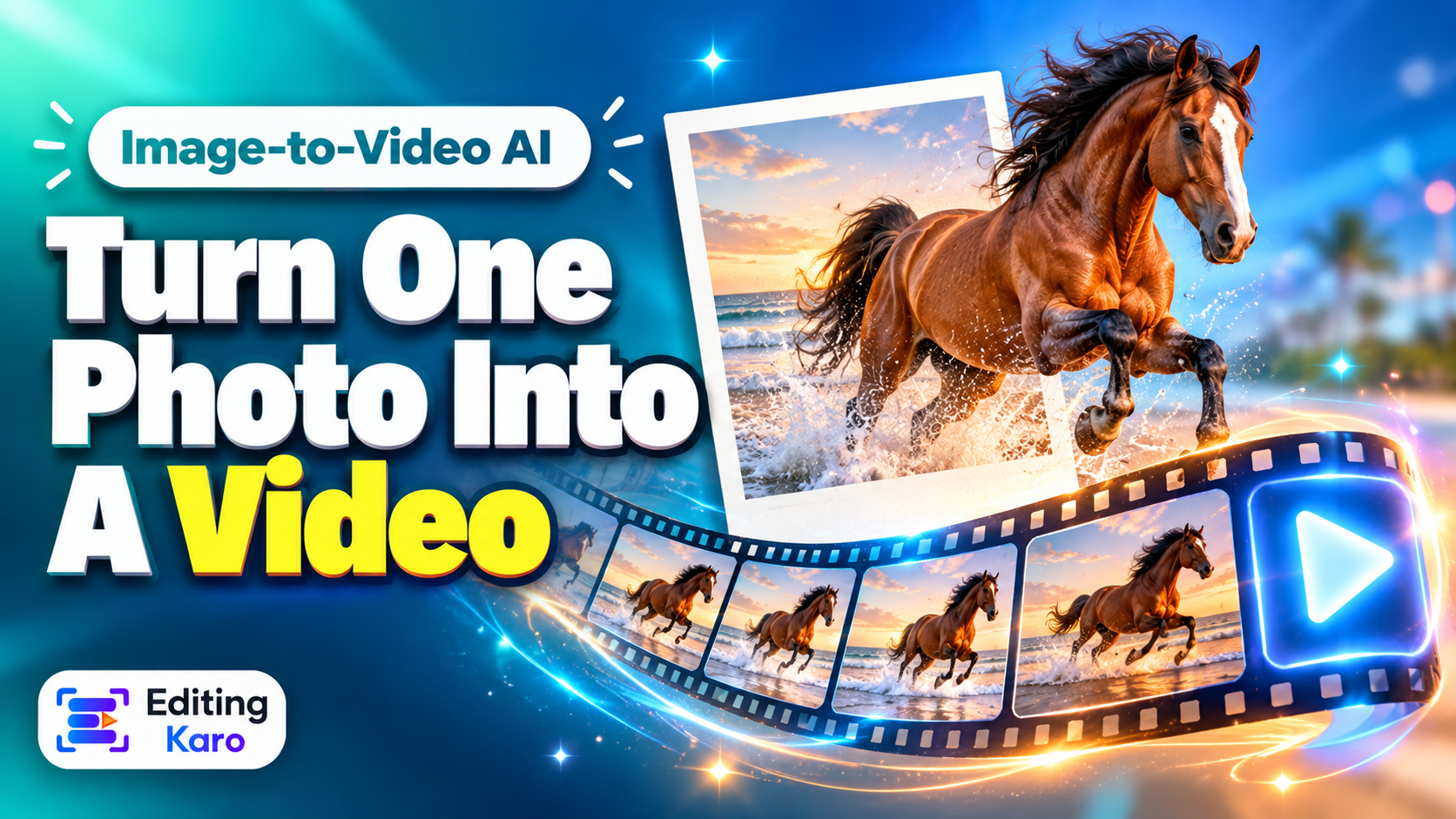
Start from an image instead, and three of those four dice are already settled. The picture fixes the look. The model only has to add movement. That is why image-to-video has become the working method for most people making AI clips for ads, Reels and product pages — and why the AI video tools of 2026 put so much weight on it, alongside vertical output and better camera control.
Here's how to get clean results.
How it works, in one paragraph
You give the model a still image and a short description of motion. It treats your image as the first frame and predicts the frames that follow. Anything visible in the image, it can move convincingly. Anything not visible — the back of a head, the inside of a closed hand, what's beyond the edge of the frame — it has to guess. Most strange results come from asking for a movement that needs a lot of guessing.
Hold on to that idea and the rest of this guide follows from it.
Step 1: Choose (or make) the right starting image
A good starting frame has:
- A clear subject that stands apart from the background.
- Sharp focus and even light. Blur in the image becomes mush in motion.
- The aspect ratio you'll publish in. 9:16 for Reels and Shorts, 16:9 for YouTube, 4:5 or 1:1 for feed posts. Don't plan to crop afterwards.
- Room to move. If the camera will push in, leave space around the subject. If something will travel left, leave space on the left.
- Nothing cut off awkwardly. Half-visible hands and faces at the frame edge are where warping begins.
- No small text. Lettering tends to wobble and melt once it moves. Add text later in an editor.
The image can be a real photo — your product, your café, a portrait with consent — or one you generate. In Vision Studio, a common flow is to create the still on the Image desk, pick the best one, and send it to the Video desk as the reference. Our image prompt formula covers getting that still right.
Step 2: Write a motion prompt
The biggest mistake is describing the picture all over again. The model can see the picture. Tell it what changes.
A simple three-part formula:
Subject motion + camera motion + pace and mood
| Part | Examples |
|---|
| Subject motion | steam rises · hair moves in a light breeze · she turns her head and smiles · waves roll in · the fabric ripples |
| Camera motion | slow push-in · gentle pan left · orbit slightly to the right · static camera · slow tilt up |
| Pace and mood | slow and calm · smooth, cinematic · natural, real-time speed |
Put together:
- "Steam rises slowly from the chai. Camera pushes in gently. Calm, warm, real-time speed."
- "The model turns her head towards the camera and smiles softly; her dupatta moves in a light breeze. Static camera. Natural pace."
- "Fairy lights twinkle and the diya flames flicker. Slow pan from left to right. Smooth and festive."
Step 3: Learn six camera moves
You only need a handful of terms, and using the standard word helps.
- Static — camera doesn't move; only the subject does. The safest choice.
- Push-in / pull-out — camera moves towards or away. Adds focus or reveals a setting.
- Pan — camera turns left or right from a fixed spot.
- Tilt — camera turns up or down.
- Orbit — camera circles the subject. Looks impressive, but it has to invent the hidden side, so keep it slight.
- Handheld — a small natural shake. Makes a clip feel filmed rather than generated.
One camera move per clip. "Pan left while zooming in and orbiting" produces soup.
Step 4: Keep the motion small
Remember the guessing problem. The less the model has to invent, the better it looks.
- Prefer slow over fast.
- Prefer subtle over dramatic: a head turn rather than a dance.
- Prefer one action over a sequence. "She picks up the cup" works. "She picks up the cup, drinks, puts it down and waves" rarely does.
- For products, let the environment move — light sweeping across, steam, water, leaves — while the product stays still. The product stays accurate and the clip still feels alive.
Fixing the usual problems
| What you see | Likely cause | Try this |
|---|
| Face changes or melts | Too much head or camera movement | Smaller turn, static camera, closer and sharper starting image |
| Extra or fused fingers | Hands partly hidden in the image | Choose an image with hands fully visible or out of frame |
| Text or logo wobbles | Models can't hold fine lettering | Remove text from the image; add it in the editor |
| Background "breathes" or shifts | Vague prompt | Say "static camera" and "background stays still" |
| Motion is too fast or rubbery | No pace given | Add "slow, smooth, real-time speed" |
| Nothing really happens | Prompt describes the picture, not motion | Rewrite with a clear verb for the subject and the camera |
|
Change one thing at a time between attempts, exactly as with image prompts. If you change the image, the prompt and the model together, you learn nothing from the result.
Step 5: Think in shots, not in one long video
A generated clip is a few seconds long. That's fine — so is a shot in any advert. Plan a short sequence:
- 1Wide — the setting (push-in)
- 2Medium — the subject (static, small action)
- 3Close — the detail (slow pan)
- 4End frame — product and offer (static)
Four clips of four seconds, cut together with music, make a tidy 15-second ad. To keep them matching, generate all the starting images in one session with the same style words, so colour and light stay consistent.
Step 6: Finish it in an editor
The raw clips are ingredients. In Motion Studio, put them on the timeline, trim the weak first and last half-second of each (the start and end of generated clips are often the least stable), add your title and captions as real text, then lay in music or a voiceover. You can generate a narration on Vision Studio's Audio desk; our AI voiceover guide explains how to script it so it sounds natural.
Use it responsibly
- Real people need consent. Don't animate someone's photo without their agreement, and never to put words or actions on them.
- Products must stay truthful. If motion changes the product's shape or colour, don't use the clip. See our AI product photo guide.
- Label realistic clips where the platform asks for it. The rules are in our AI labels guide.
A first exercise
Take one good photo of a cup of chai by a window. Generate three clips from it:
- 1"Steam rises slowly. Static camera."
- 2"Steam rises slowly. Camera pushes in gently."
- 3"Steam rises slowly; light shifts softly across the table. Slow pan right."
Watch them side by side. In ten minutes you'll understand more about motion prompts than from a week of reading, including this article.