How to restore old photos with AI, step by step
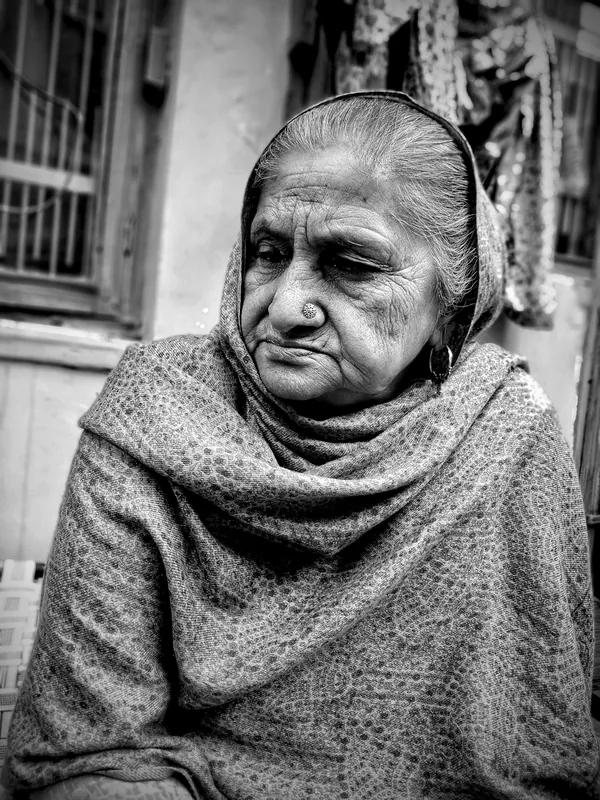
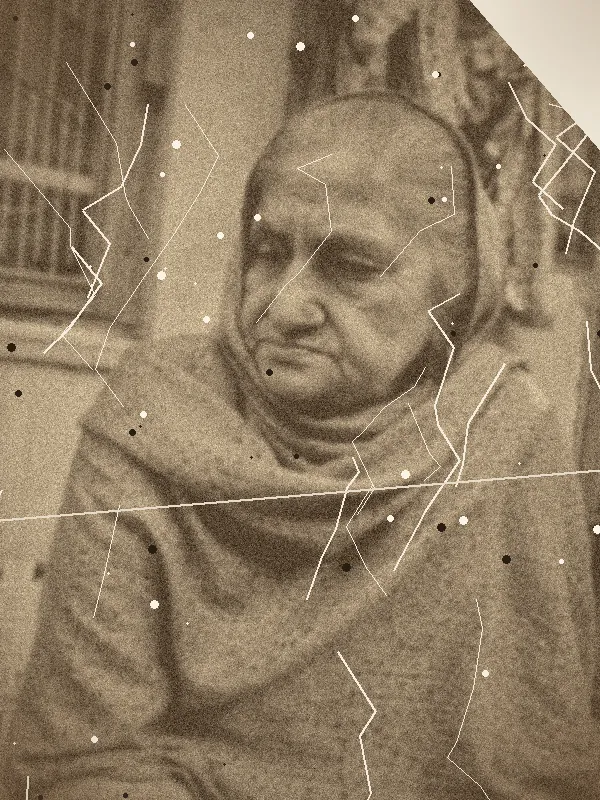
Old photo restoration used to mean hours of hand retouching. AI does the slow part in seconds — but the result still depends on how you capture the original.
Capture the original well
- 1Take the photo out of its frame so there's no glass glare.
- 2Lay it flat in soft daylight, near a window but out of direct sun.
- 3Shoot straight down with your phone held parallel to the print, or use a flatbed scanner at 600 DPI.
- 4Fill the frame with the print, then crop off the edges in Pixel Studio.
A clean capture gives the AI more real detail to work with than any restoration can invent.
What AI Image Restore fixes
| Problem | Fixed by |
|---|---|
| Grain, noise, scan dust | AI Image Restore |
| Blocky compression from forwards | AI Image Restore |
| Soft, faded detail | AI Image Restore, then AI photo enhancer |
| Too small to print | Image upscaler (Super Resolution 4K) |
| Dull, yellowed colour | AI photo enhancer |
A good order for a rough print is restore → enhance → upscale.
Large tears and missing pieces
AI Image Restore cleans up noise and damage across the image; it isn't a tool for rebuilding a missing corner. For a scratch or stain on a plain area, try Magic Eraser — paint over the mark and it fills the gap.
Restore old photos without a prompt
Many people search for prompts to paste into chat apps to restore photos. Here there's nothing to write: the tool is built for one job and applies it directly.
Respect the people in the photo
Restoration should bring back what was there, not change it. Keep faces and features true to the original, and ask family before sharing photos of others online.
Share them the right way
A restored photo deserves a little context. Add the year and place as a caption, put two generations side by side for an anniversary post, or turn a set of restored prints into a short video with image to video. Keep the original scan as well as the restored version — it's the record of what the photo really looked like.
What the Free plan includes
The Free plan includes 4 AI photo tool uses a month; each restore costs 1 credit. Paid plans remove the monthly cap and export without a watermark at up to 4K. See pricing.