How to Make a UPI QR Code for Your Shop — and Print It So It Scans Every Time
A step-by-step guide to creating a UPI payment QR code for a shop, stall or invoice, printing it at the right size, and protecting customers from QR swap scams.
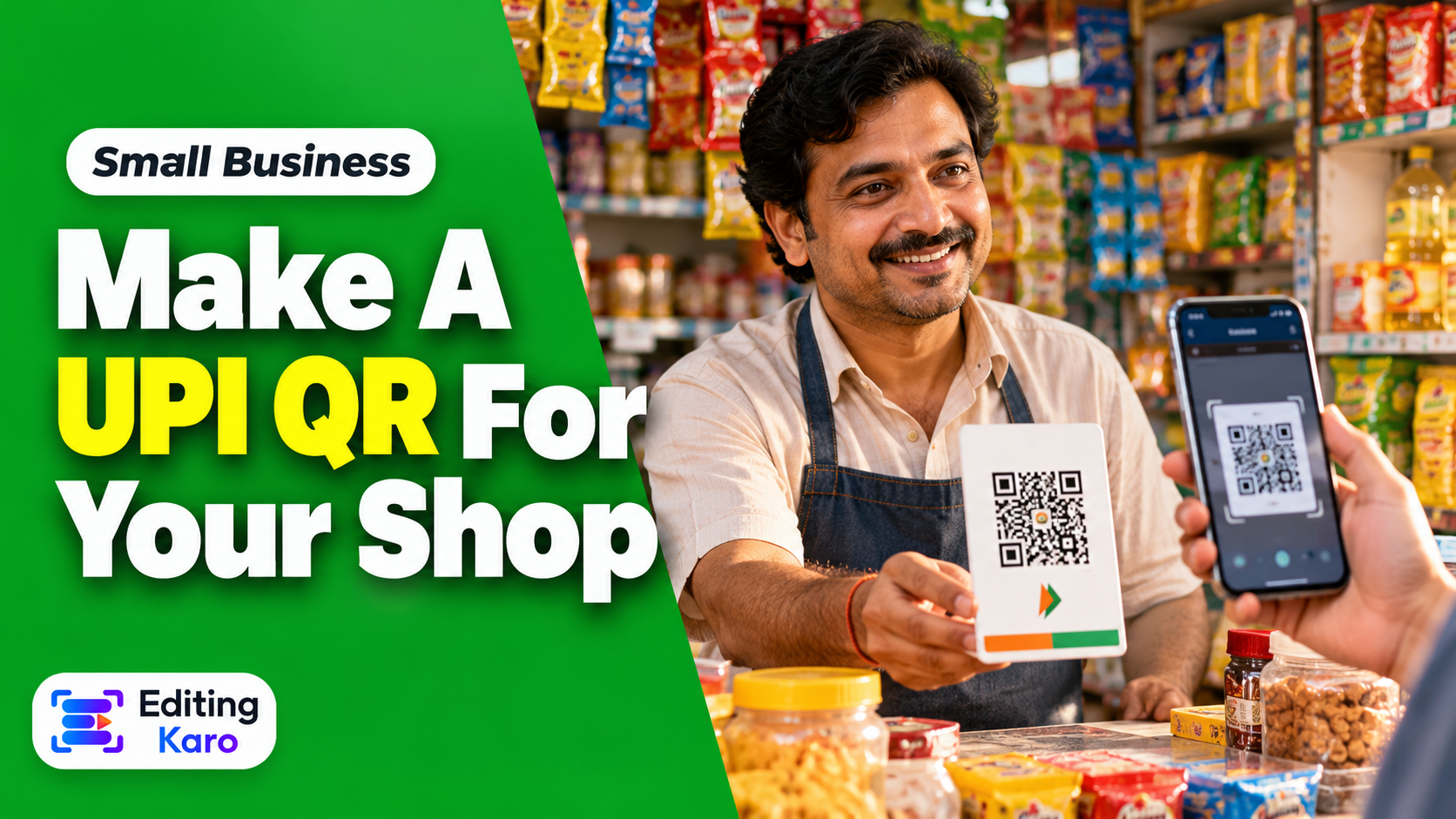
For most shops, stalls and home businesses in India, a UPI QR code is the checkout. Customers expect it, it costs nothing to accept, and the money lands straight in your bank account.
Open all four studios free — no card, nothing to install.
What many people don't realise is that you don't need an app, a sign-up or a payment company to make one. A UPI QR code is just a short piece of text in a standard format — and any QR generator can turn it into a code every UPI app can read.
What's inside a UPI QR code
When someone scans your code, their UPI app reads a link like this:
That's all. No login, no expiry, no middleman. The code works in Google Pay, PhonePe, Paytm, BHIM and every other UPI app.
Step 1: Get the right UPI ID
Your UPI ID looks like name@bankhandle. You'll find it in your UPI app's profile section.
For occasional payments, a personal UPI ID works. For a shop taking payments every day, it's worth asking your bank about a business or merchant UPI ID — they're designed for regular customer payments and can make your records and limits easier to manage.
Step 2: Decide: open amount or fixed amount?
Open amount (leave it empty) — the customer types what they owe. This is right for a shop counter, a stall or a tip jar.
Fixed amount — the amount is pre-filled. Ideal for invoices, event tickets, course fees and single-price products. Fewer typos, faster payments.
Add a short note too — an invoice number or product name makes matching payments much easier later.
2Your business name (exactly as you'd like customers to see it).
3Optionally, an amount and a note.
The code updates as you type. You can change the colours and add your logo in the centre — the generator automatically switches to the highest error correction so the code still scans with a logo on top.
The codes are static: your details are written into the pattern itself, so the code never expires and doesn't depend on any website staying online.
Tip: Keep the code dark on a light background. Light-on-dark and pale colour combinations fail on many phone cameras, especially in dim shops.
Step 4: Test it before you print
Scan the code with your own phone and a second phone with a different UPI app. Make a ₹1 payment and check:
The name shown is your business name.
The money arrives in the right account.
A fixed amount (if you set one) appears correctly.
Only then print it.
Step 5: Print at the right size
Too small and phones struggle to focus; too close to the edge of a sign and they can't find it.
Where
Minimum size
Invoice or receipt
2.5 × 2.5 cm
Shop counter stand
5 × 5 cm or bigger
Wall or window, scanned from 1–2 m
10–20 cm
A handy rule is that the code should be about one-tenth of the scanning distance. Always leave a clear margin (the "quiet zone") around the code, at least a few millimetres of plain background.
Download the SVG version for printing — it stays perfectly sharp at any size. Use the PNG for WhatsApp, invoices and your website.
Step 6: Design a proper counter card
A bare QR code works, but a simple card works better. Include:
The QR code, large and centred.
Your business name in big letters (so customers can check it matches their app).
"Scan & pay with any UPI app".
Optionally, your UPI ID in small text for customers who prefer to type it.
You can lay this out in a few minutes in Pixel Studio: place the downloaded QR, add your name and colours, and print it at A6 or postcard size.
Protect your customers from QR swap scams
A known trick is to paste a different QR sticker over a shop's code so payments go to a scammer. A few habits make this much harder:
Laminate or frame your QR so a sticker can't be pasted on unnoticed.
Check it daily — does it still look like yours?
Tell customers to check your business name in their app before they pay.
Confirm payments by checking your own app or soundbox, not the customer's screen.
Checklist
Correct UPI ID and business name, checked twice.
Open amount for the counter, fixed amount for invoices.
Tested with a ₹1 payment from two apps.
Printed at least 5 × 5 cm for a counter, with a clear margin.
Laminated, checked daily.
Making a festive offer poster to go with it? Our Diwali content plan covers what to post and when.
Frequently asked questions
Is making a UPI QR code free?
Yes. The QR code only contains your UPI ID, name and optional amount in a standard format, so you can generate it with any free QR tool. There's no charge for the code itself.
Should I use my personal UPI ID for my shop?
It works, but many banks and payment apps recommend a business or merchant UPI ID for regular shop payments — it can offer higher limits and cleaner records. Check what your bank offers.
What size should I print a UPI QR code?
At least 2 × 2 cm for anything scanned up close, and 5 × 5 cm or larger for a shop counter. A rough rule: the code should be about one-tenth of the distance it's scanned from.
Can a UPI QR code have a fixed amount?
Yes. Adding an amount pre-fills it in the payer's app — useful on invoices, event tickets and fixed-price items. Leave it out for a counter QR that should work for any payment.
How do I protect customers from QR code scams?
Laminate or frame your QR, check it daily, and ask customers to confirm your business name appears in their app before paying. Scammers sometimes paste their own QR sticker over a shop's.
EK
About the author
Editing Karo Team
Designers, video editors and writers behind Editing Karo
We're the people who build Editing Karo's four studios — designers, video editors, writers and engineers based in Delhi. We spend our days making social posts, thumbnails, reels and captions, and watching what helps creators and small businesses get them out faster. Every guide here is written from that work: tested in our own tools, checked against each platform's current rules, and updated when those rules change.